iAUTO ENERGY EV Charging App - Use and Billing
Add a RFID FOB or CARD
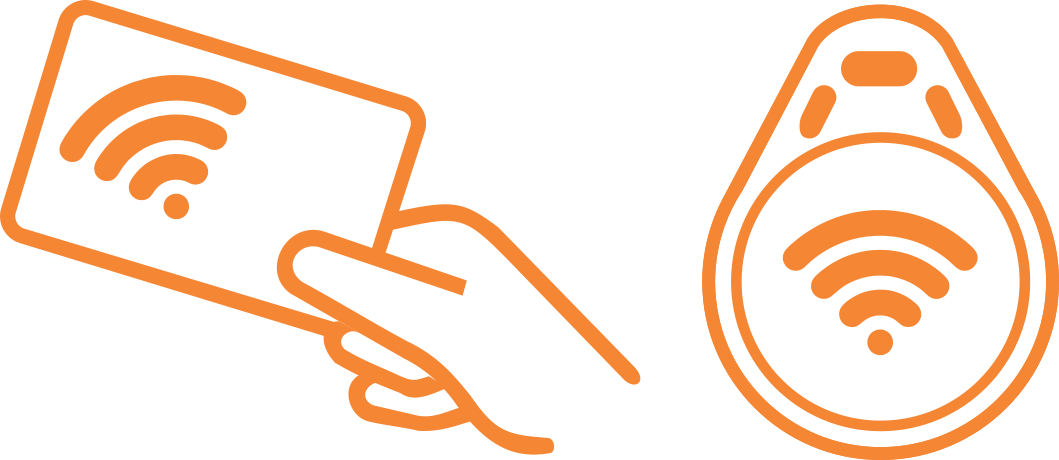
For a more convenient charging session startup, or if you have poor internet access at your EV Charger, an RFID Fob or Card is your solution.
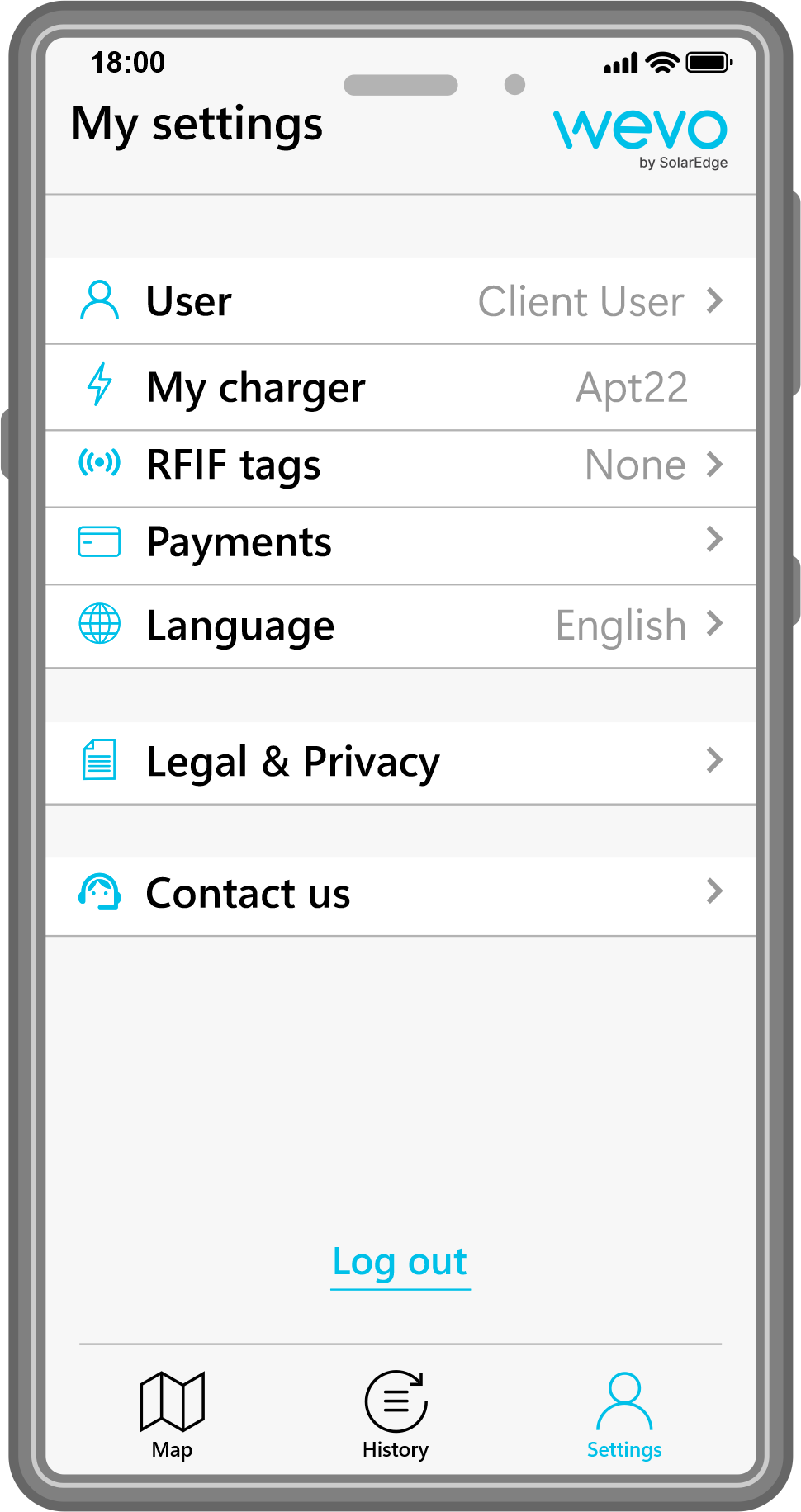
1. Select “Settings” then tap “RFID tags”.
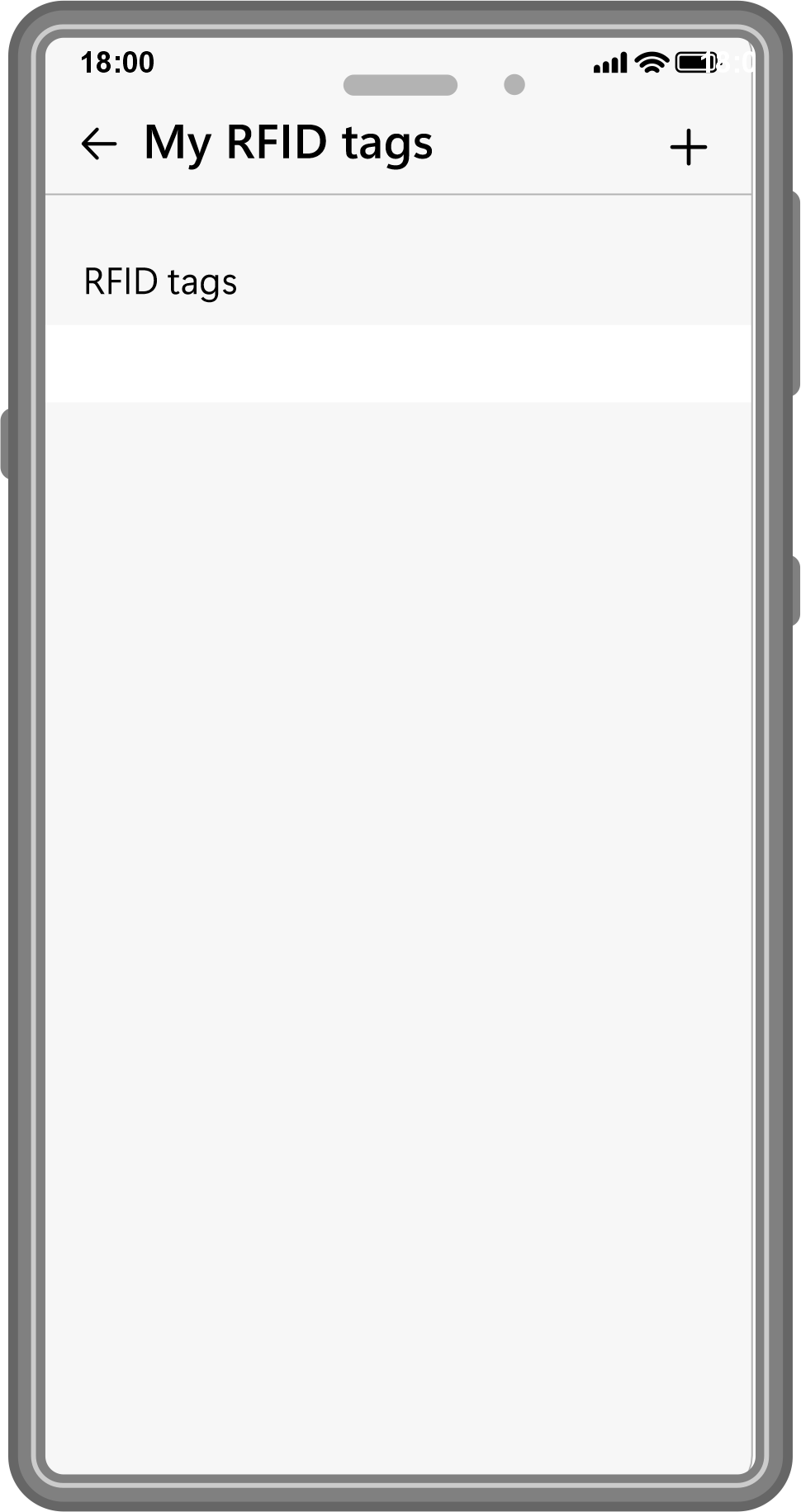
2. Tap the “+” symbol to add your new RFID fob or card.
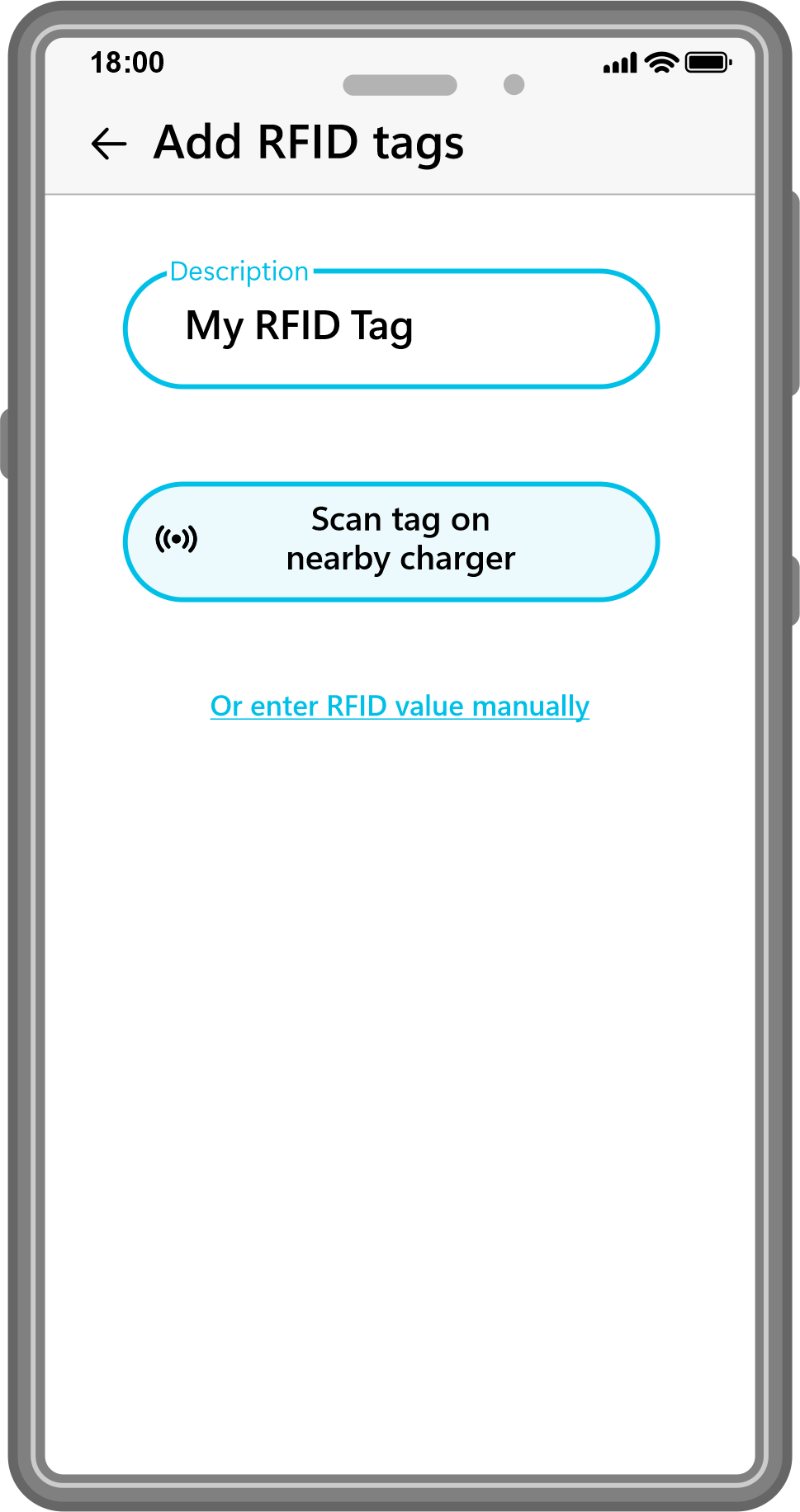
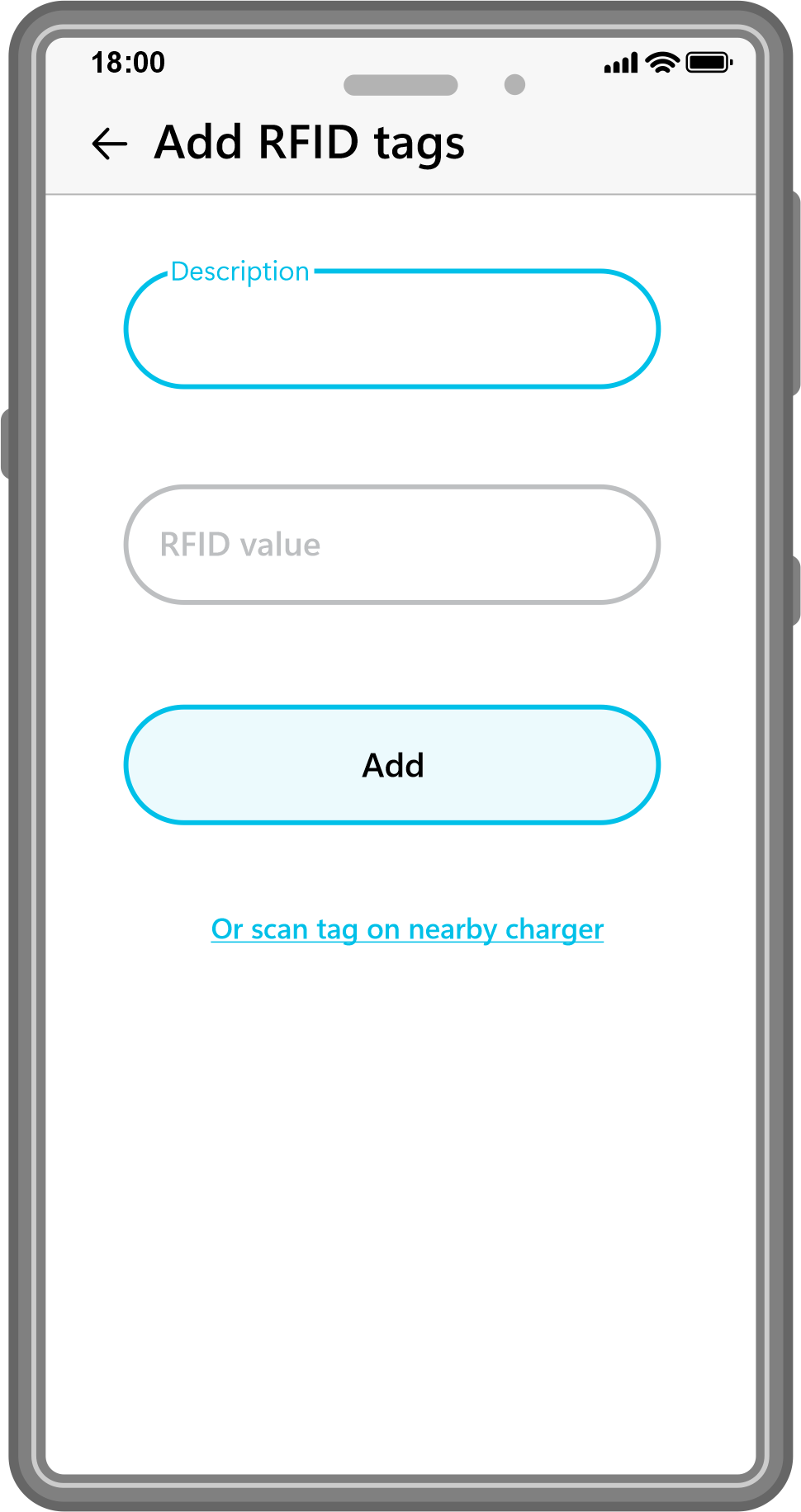
3. In the description box, name your RFID fob or card. Then tap “Scan tag on nearby charger” or the option for manual entry.
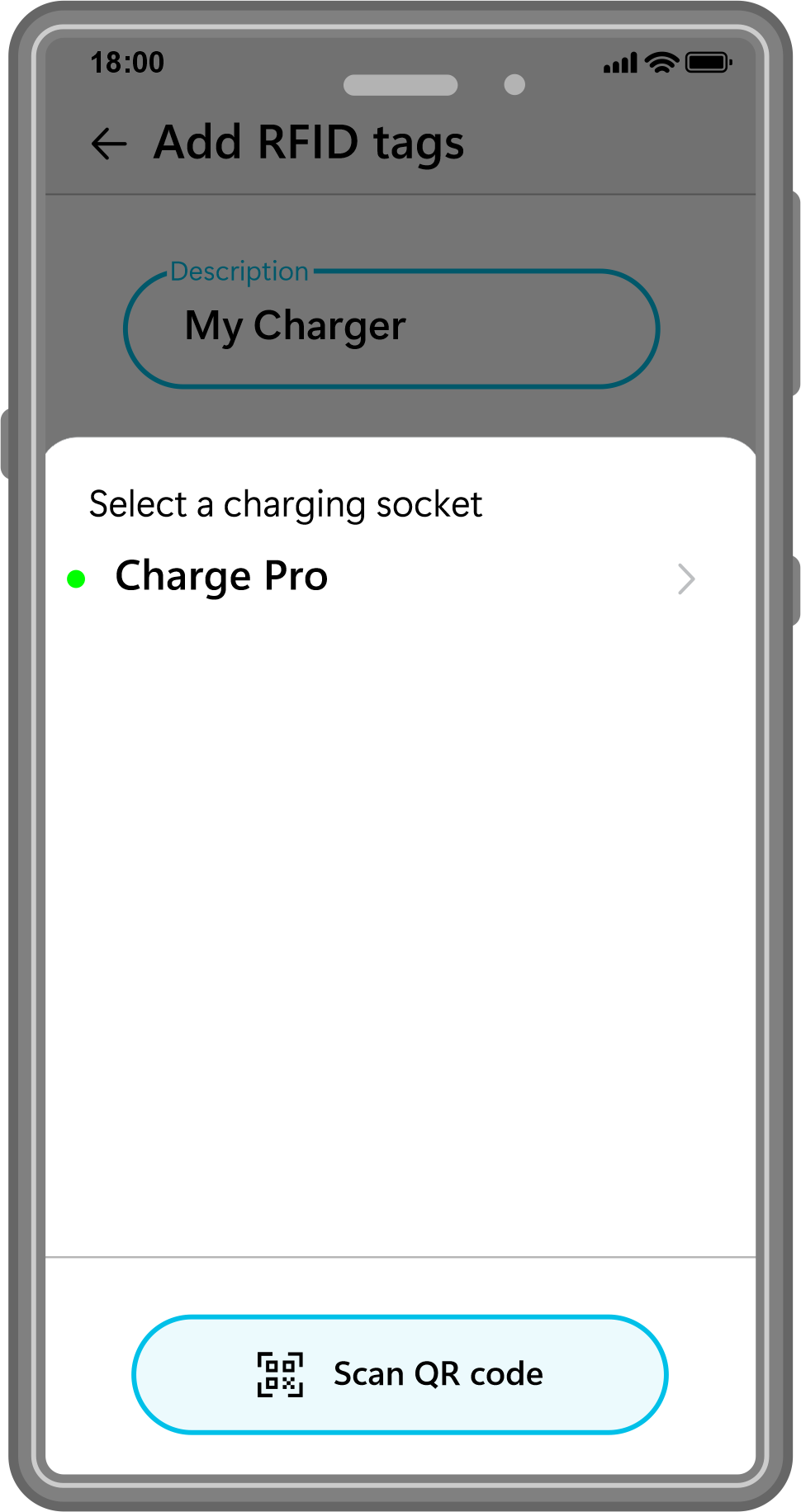
4. Select your charger, either by tapping on a visible charger or tap “Scan QR code” when using a public charger.
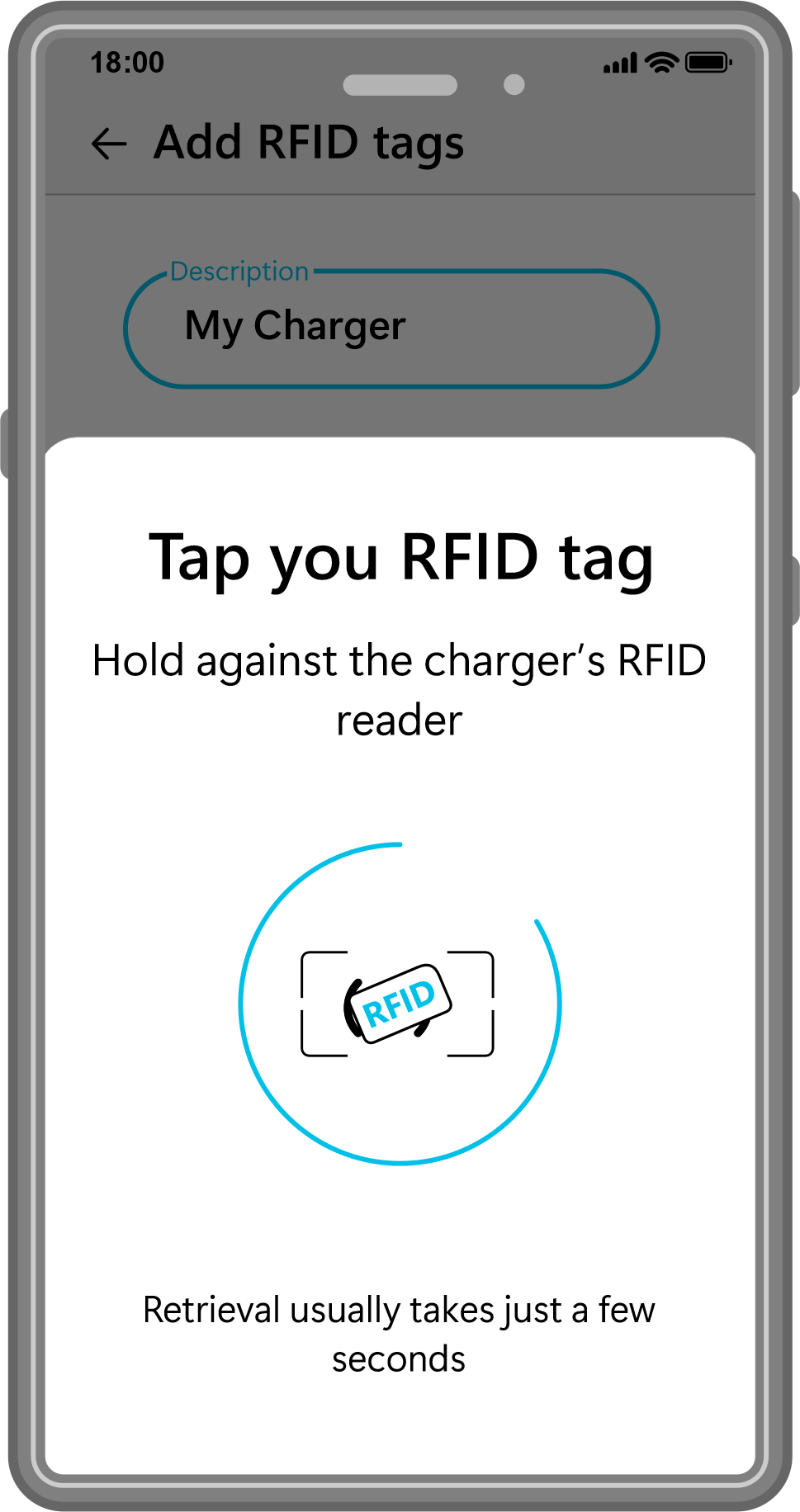
5. Hold your RFID fob or card against your chargers RFID reader to register.
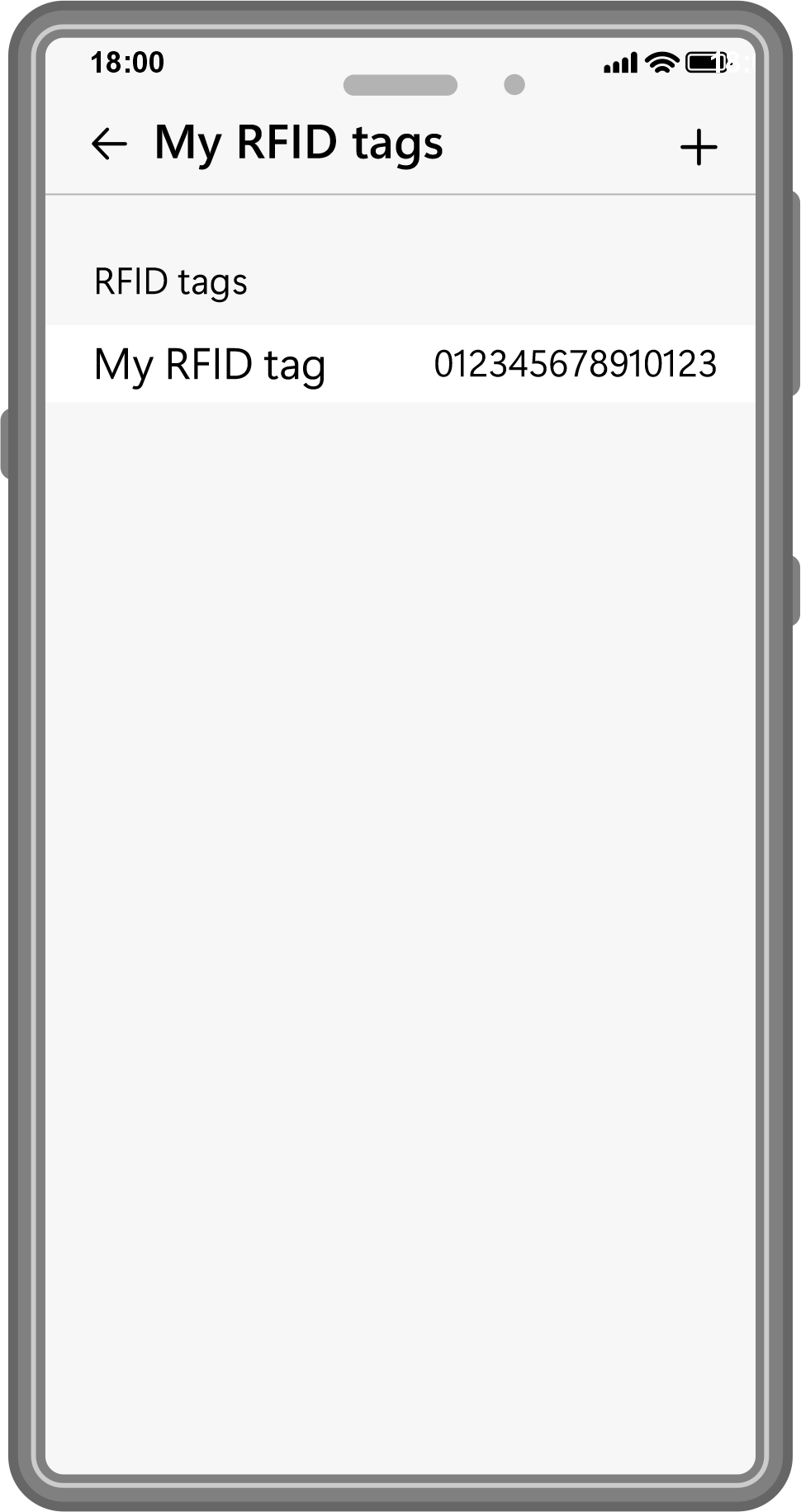
6. When complete, your RFID fob or card will be listed under RFID tags.
You can manually register a RFID fob or card to your EV Charging App by identifying your RFID serial number or value.
Manually add a RFID Card or Fob
If you need to identify your RFID value/serial number, you can download a free App such as NFC Tools or similar.
Using your phone you will be able to scan you RFID card or fob to obtain the RFID value.
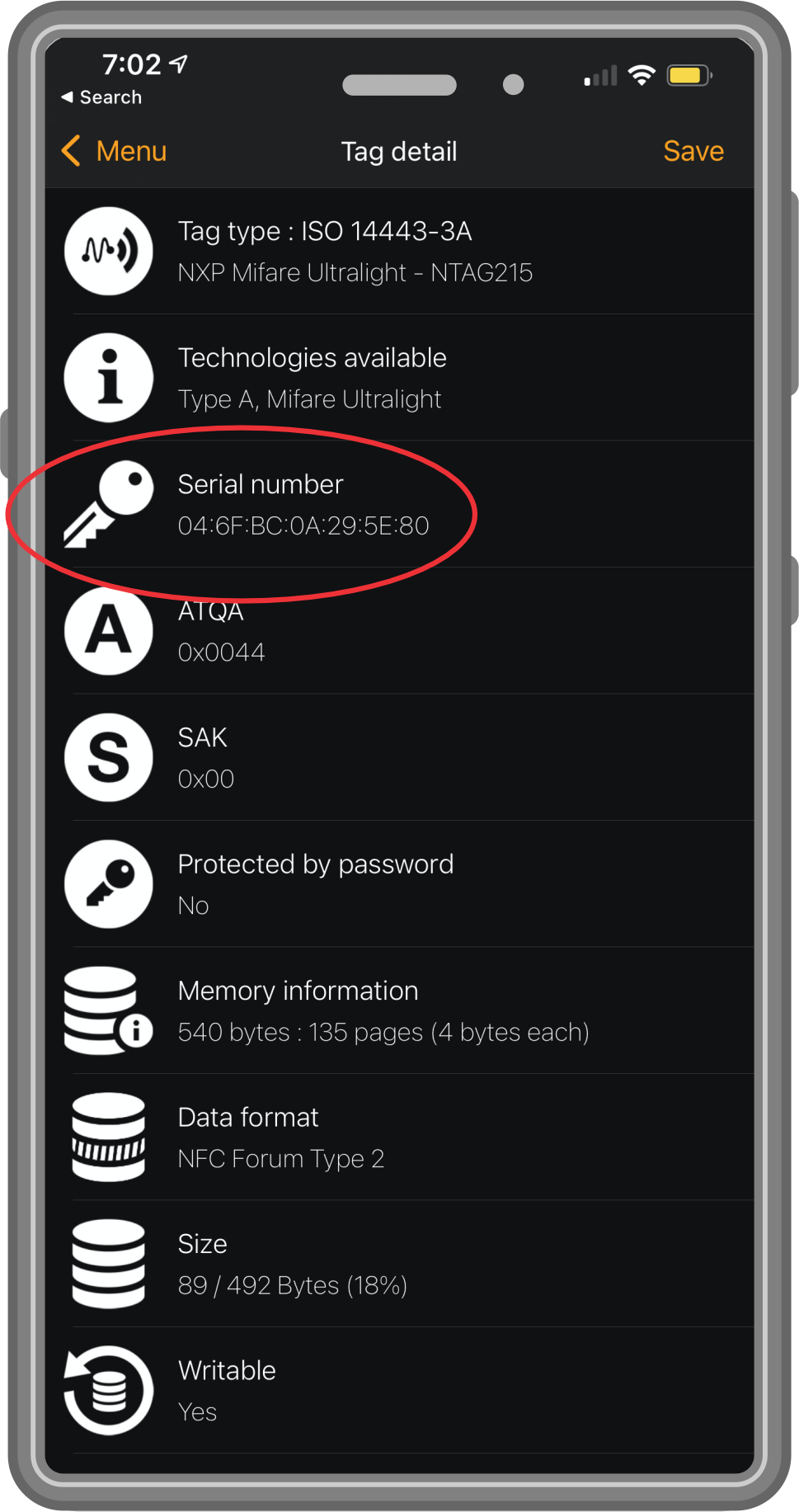
In the description box, name your RFID fob or card. Then enter your RFID value (exclude any “:,.” and spaces, eg. “12345678” not “12 34:56 78”). Then “tap”add.