
iAUTO ENERGY EV Charging App - Use and Billing
Charging Instructions & Features
Default Off-Peak Charging
Note: By default most private charging systems are set to charge in off-peak periods, firstly to save on energy costs, but also not to drain energy from your site in peak energy use periods, as well as to assist the energy grid. This may not be applicable to all sites.
Off-Peak charging can be overridden in the App by selecting “Switch to Boost”
Activating a Charging Session
Private Charging - Off-Peak / Standard Tariff
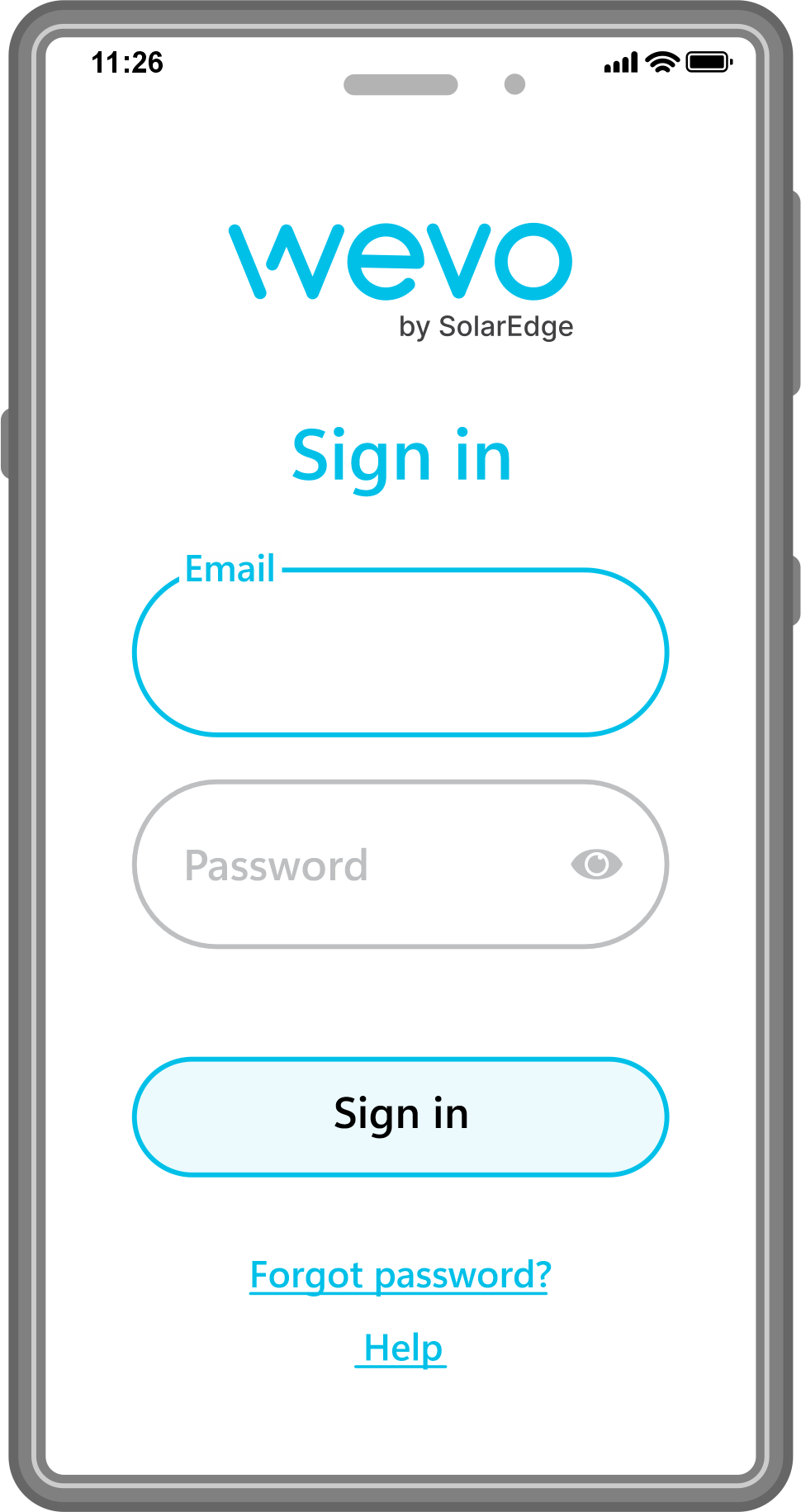
1. Open the EV Charger App and login.
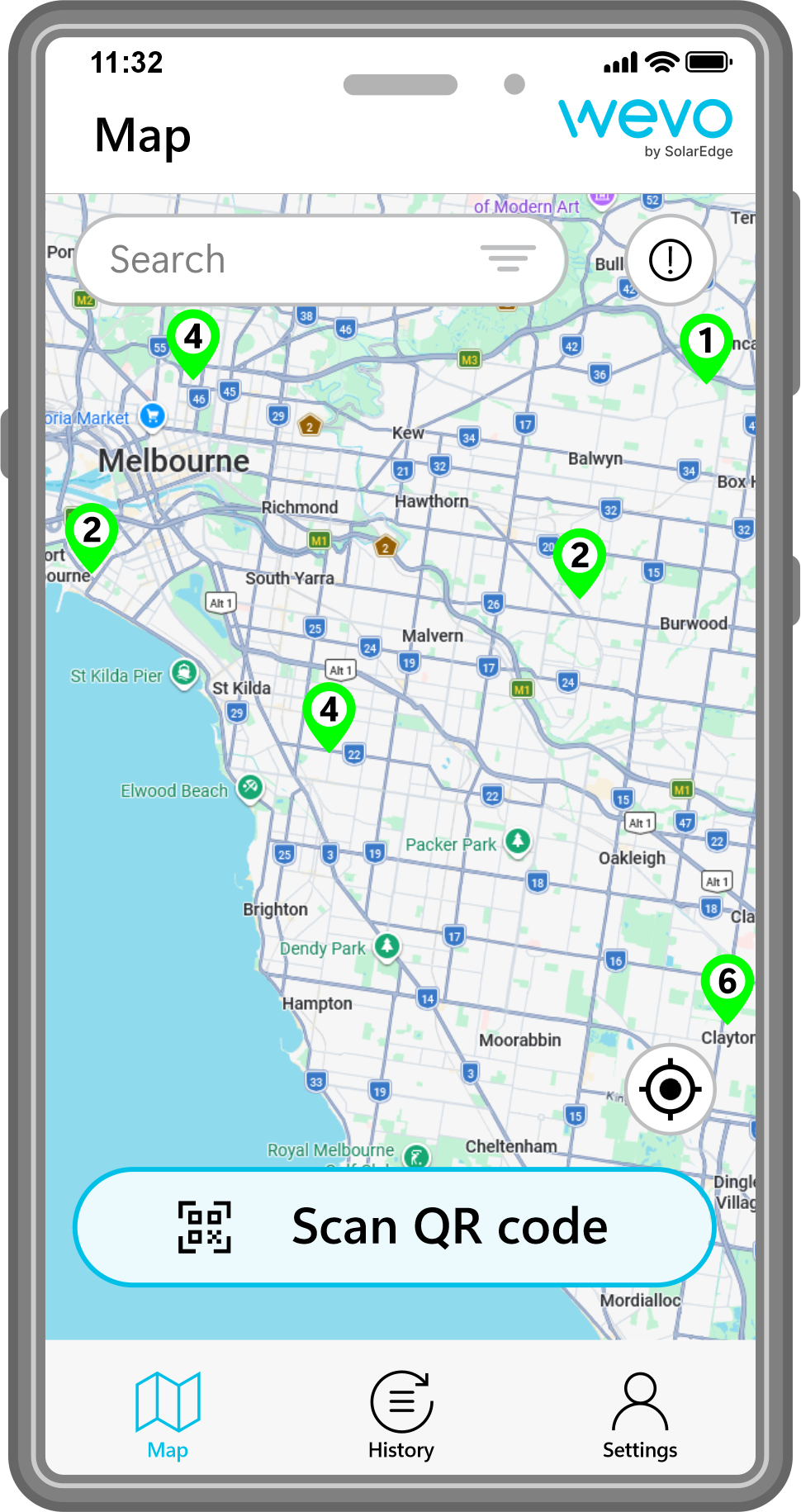
2. Select your charger location on the map.
Private users will see their charger location, but may also see publicly accessible chargers on the iAUTO ENERGY network.
Note: Your private charger is not visible to others.
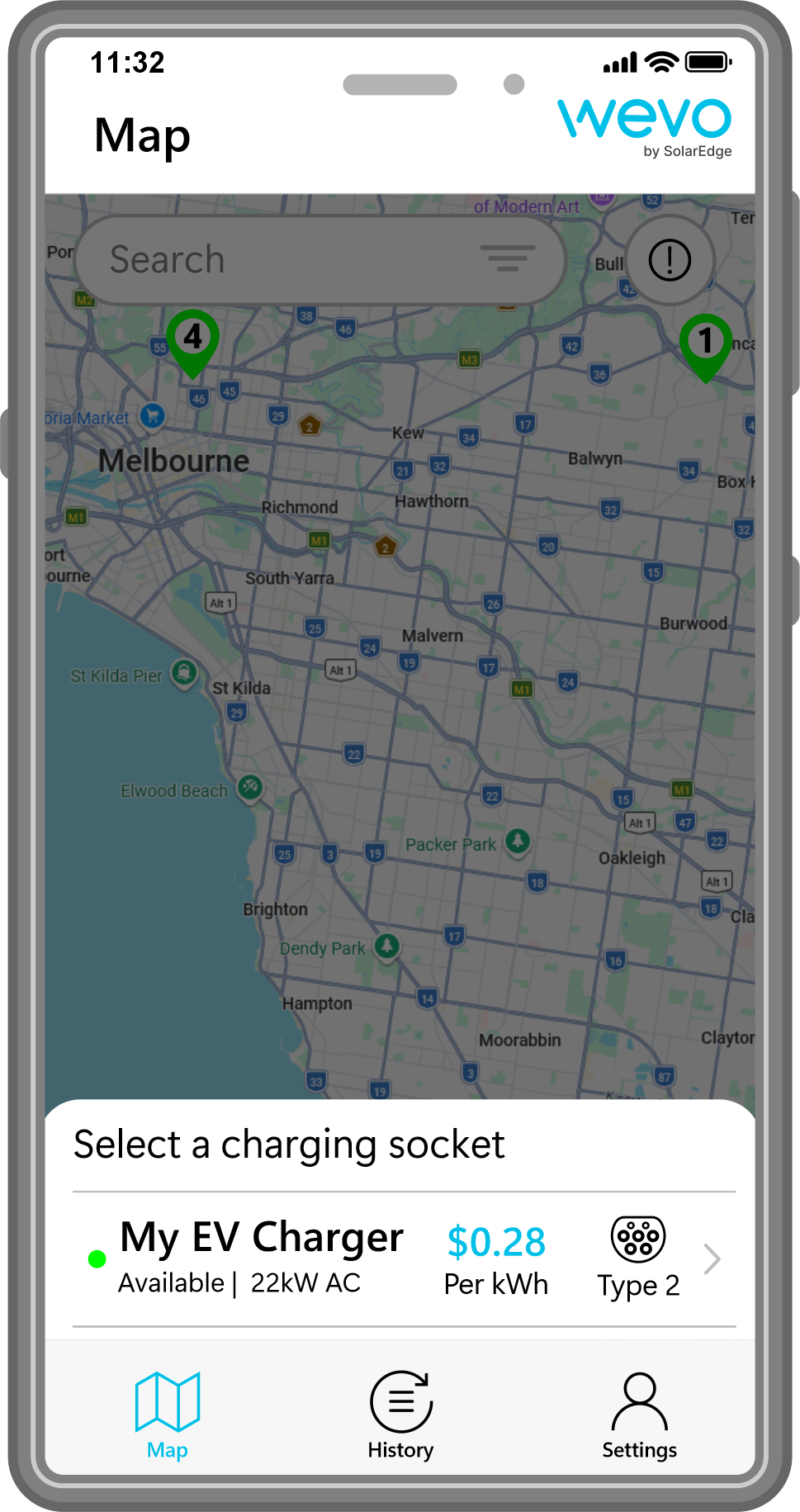
3. Select your charger.
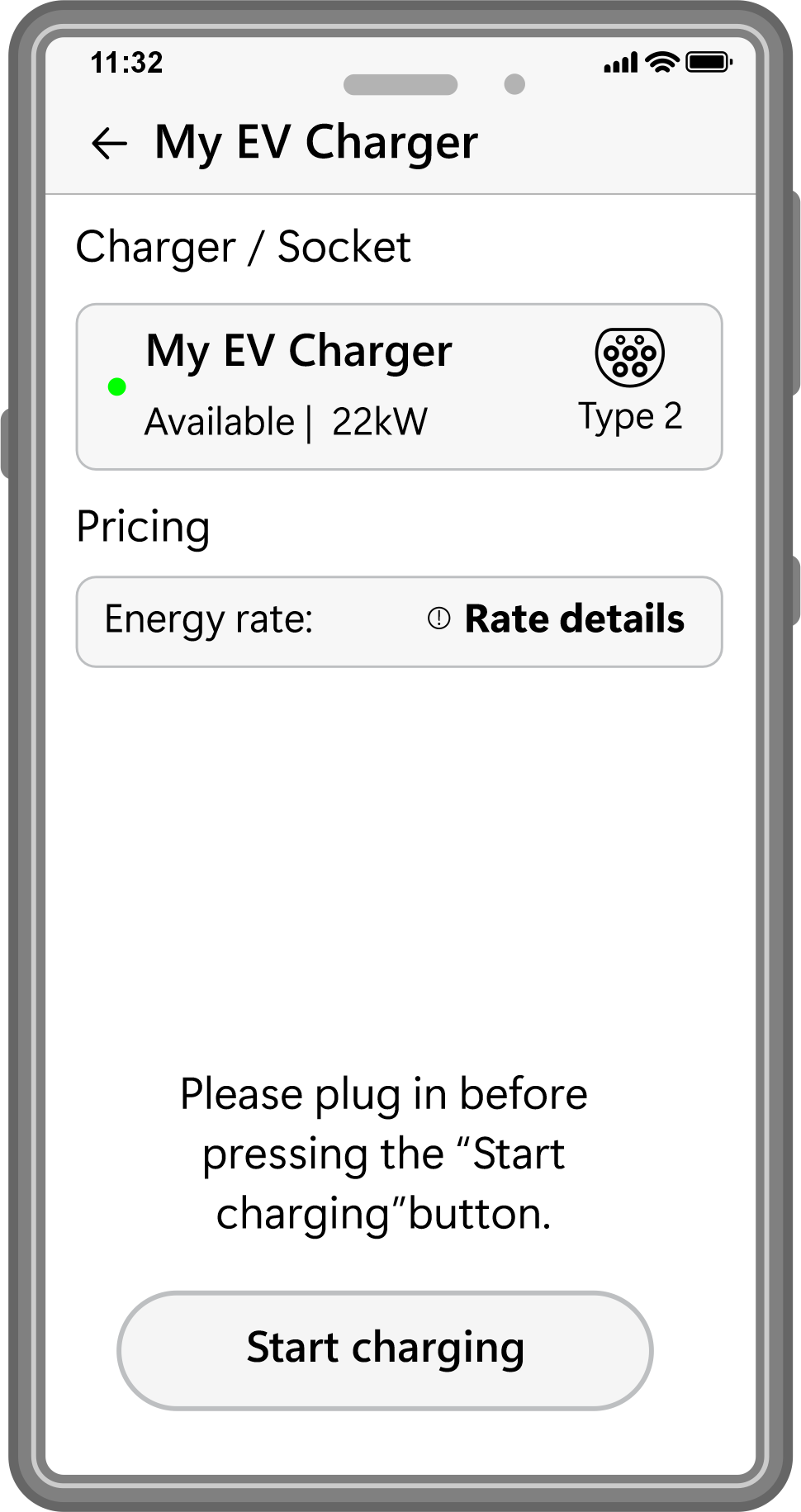
4. Ensure you have your vehicle plugged in, then tap “Start charging”.
Tap “Rate details” to view your energy rates.
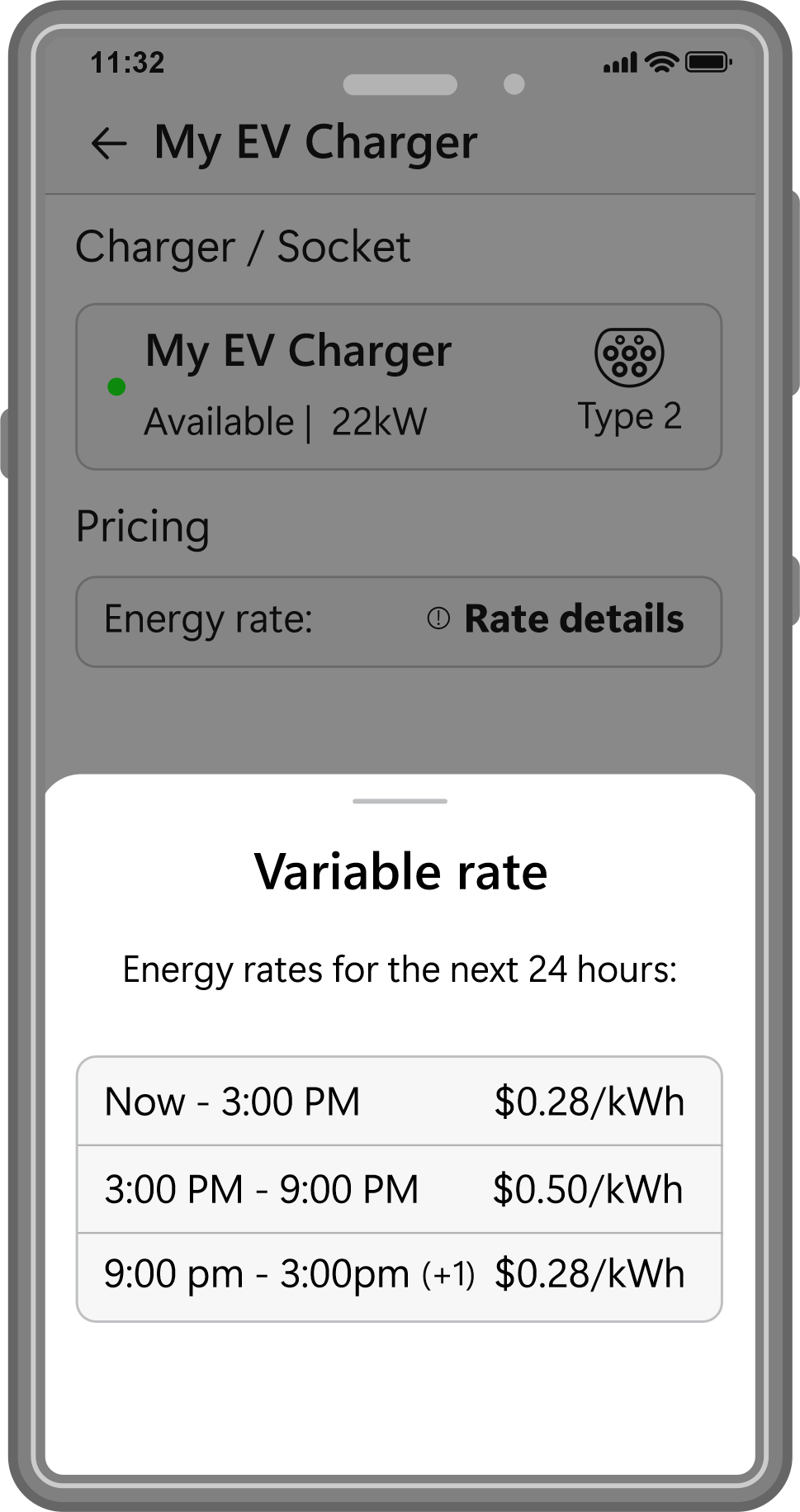
5. Tapping “Rate details” shows your energy rates for the next 24 hours.
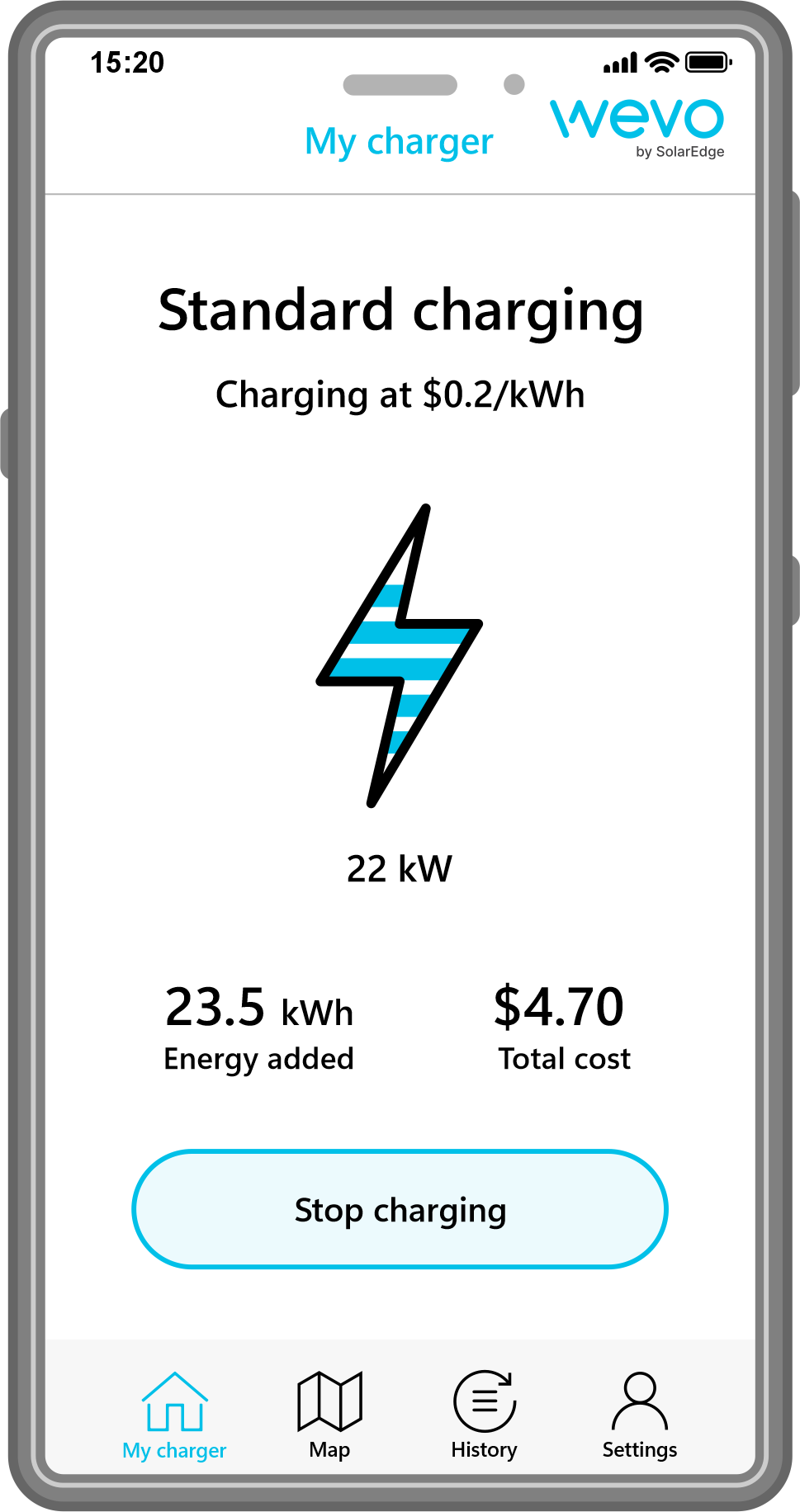
6. When your charging session begins, the app shows your charging progress with the total kWh added and your cost.
Tap “Stop charging” to finish your session.
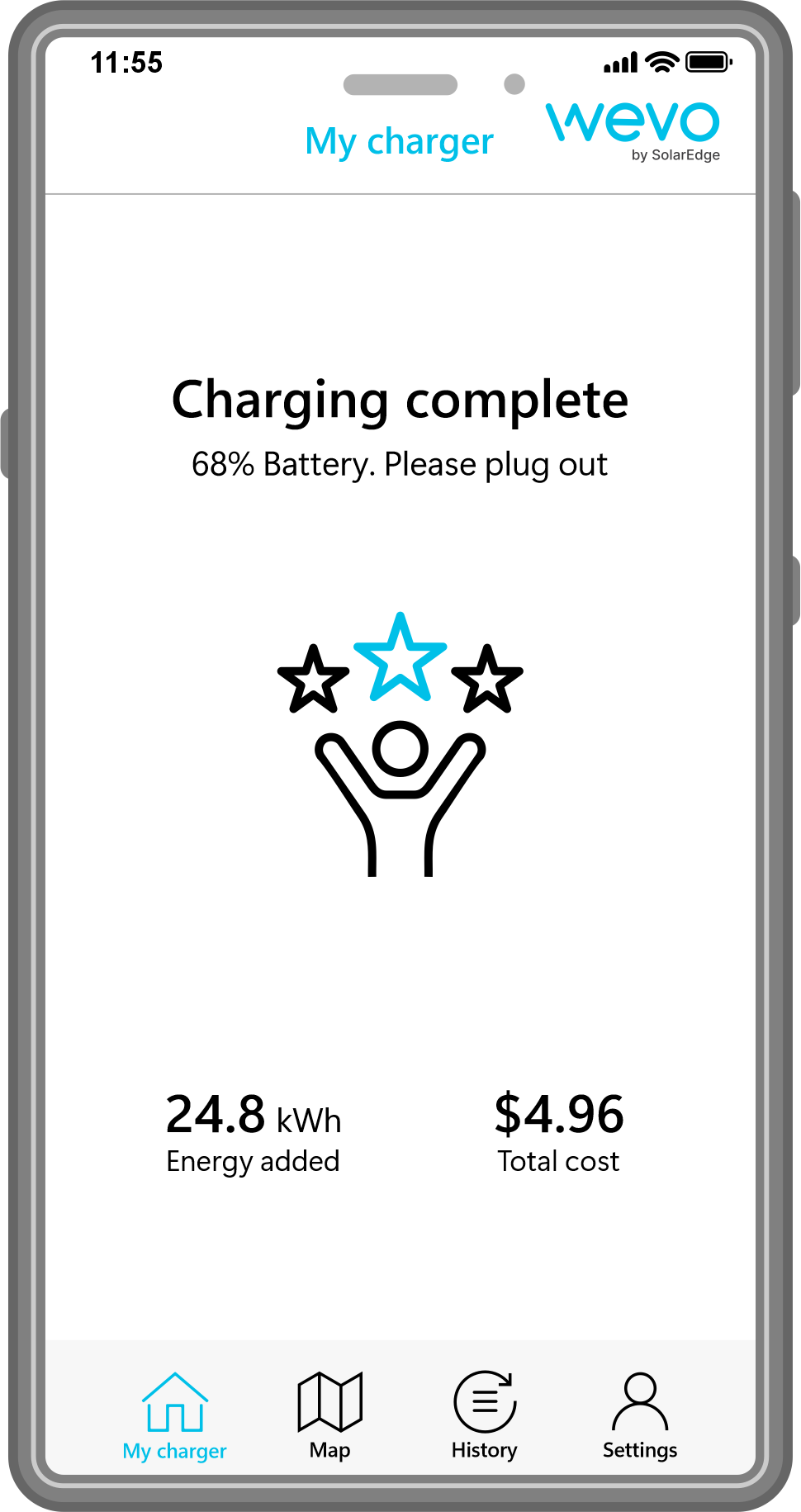
7. Once a charge session is complete, the app will show your vehicle’s charge status, energy added and total cost of this session.

Peak Time Charging - Boost
At anytime you can override the default setting for off-peak charging.
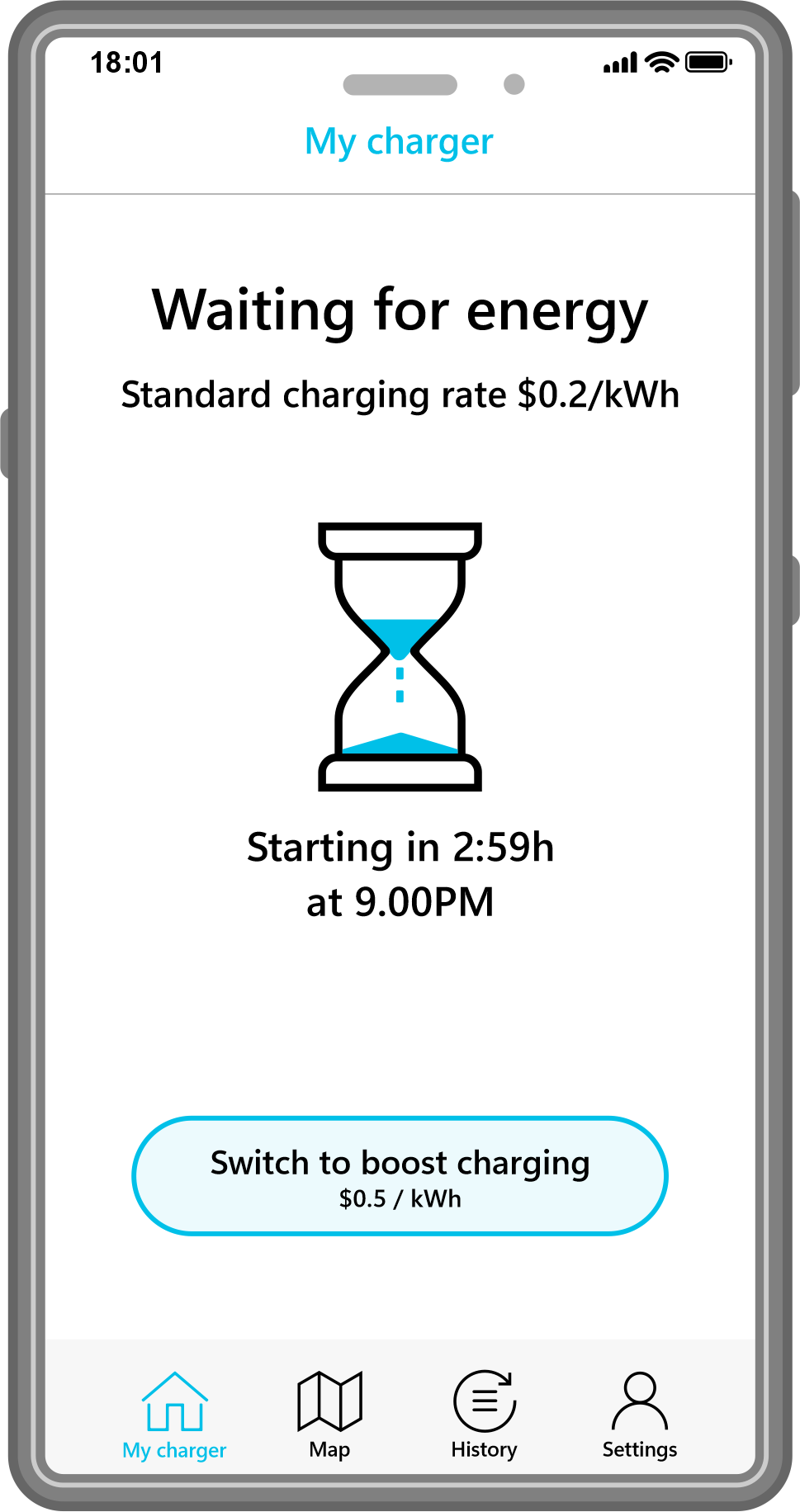
1. If plugged in during a peak period, the app will display a countdown indicating when charging will begin.
Select “Switch to boost charging” to start charging immediately at a higher energy rate.
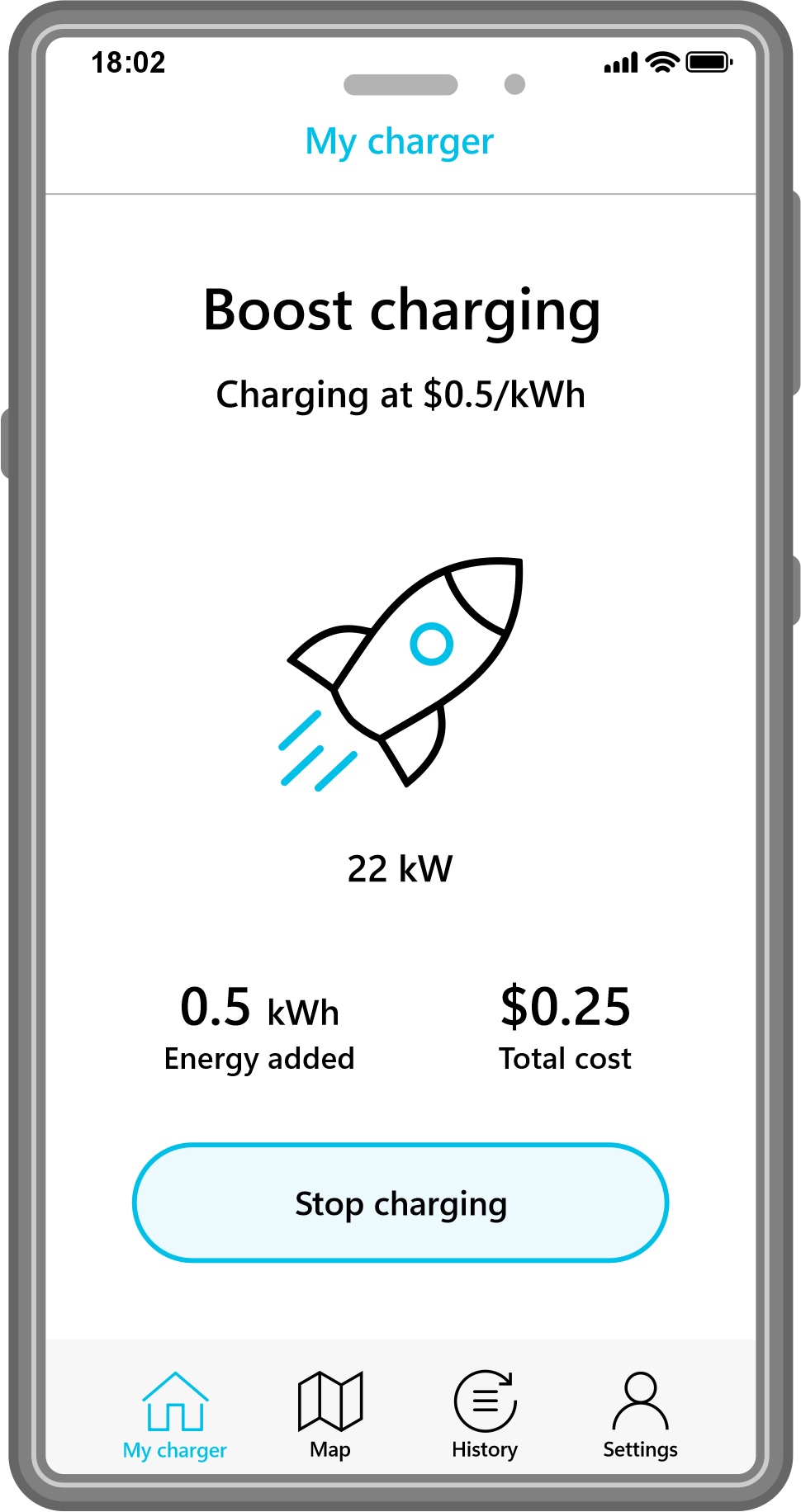
2. Whilst charging, your current status is viewable. Tap “Stop charging” to finish a session.
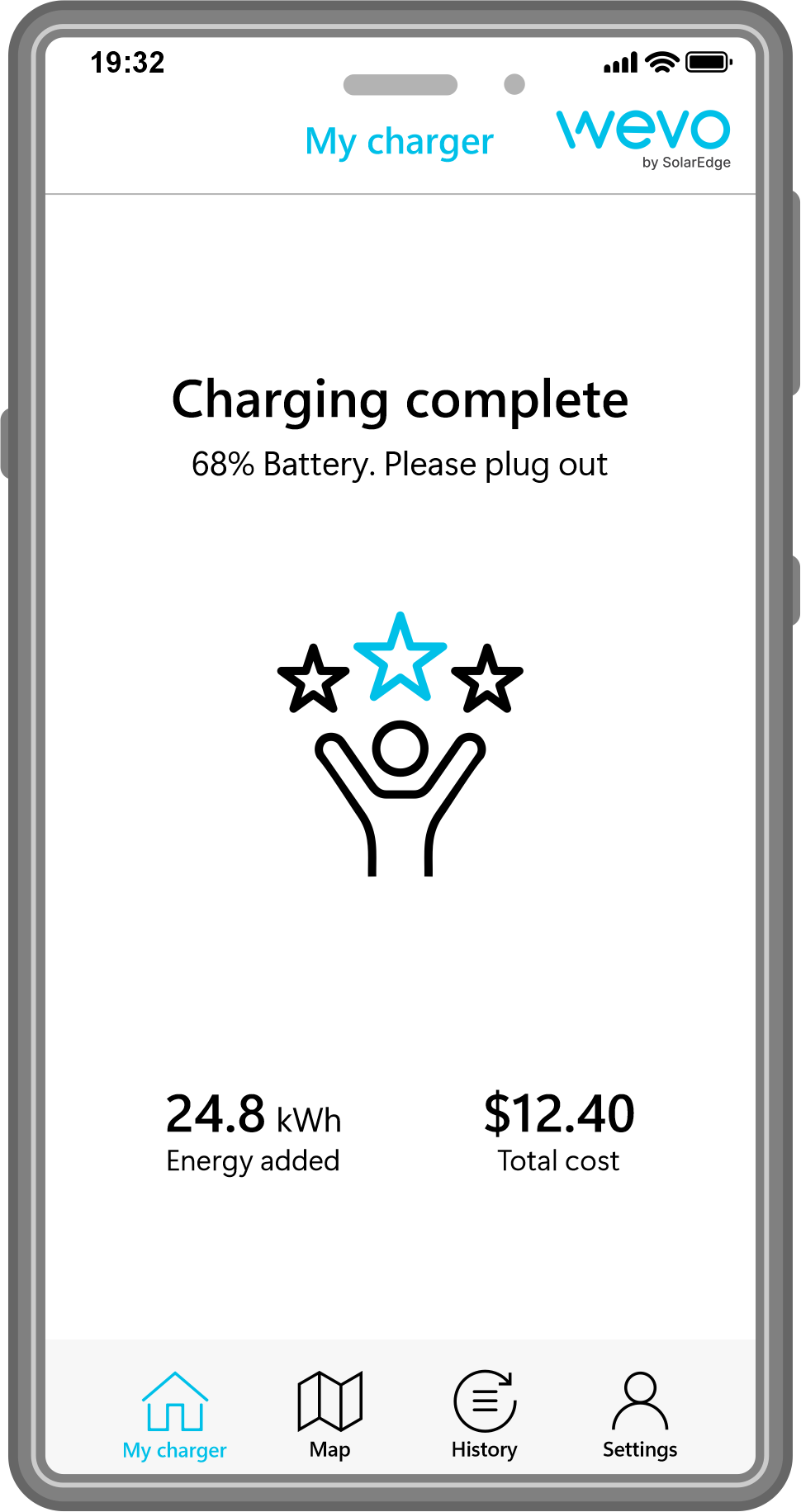
3. Once a charge session is complete, the app will show your vehicle’s charge status, energy added and total cost of this session.
Public Charging & Corporate
The Charging App allows to to locate close by publicly available EV Chargers, check their availability, rates and connect to charge.
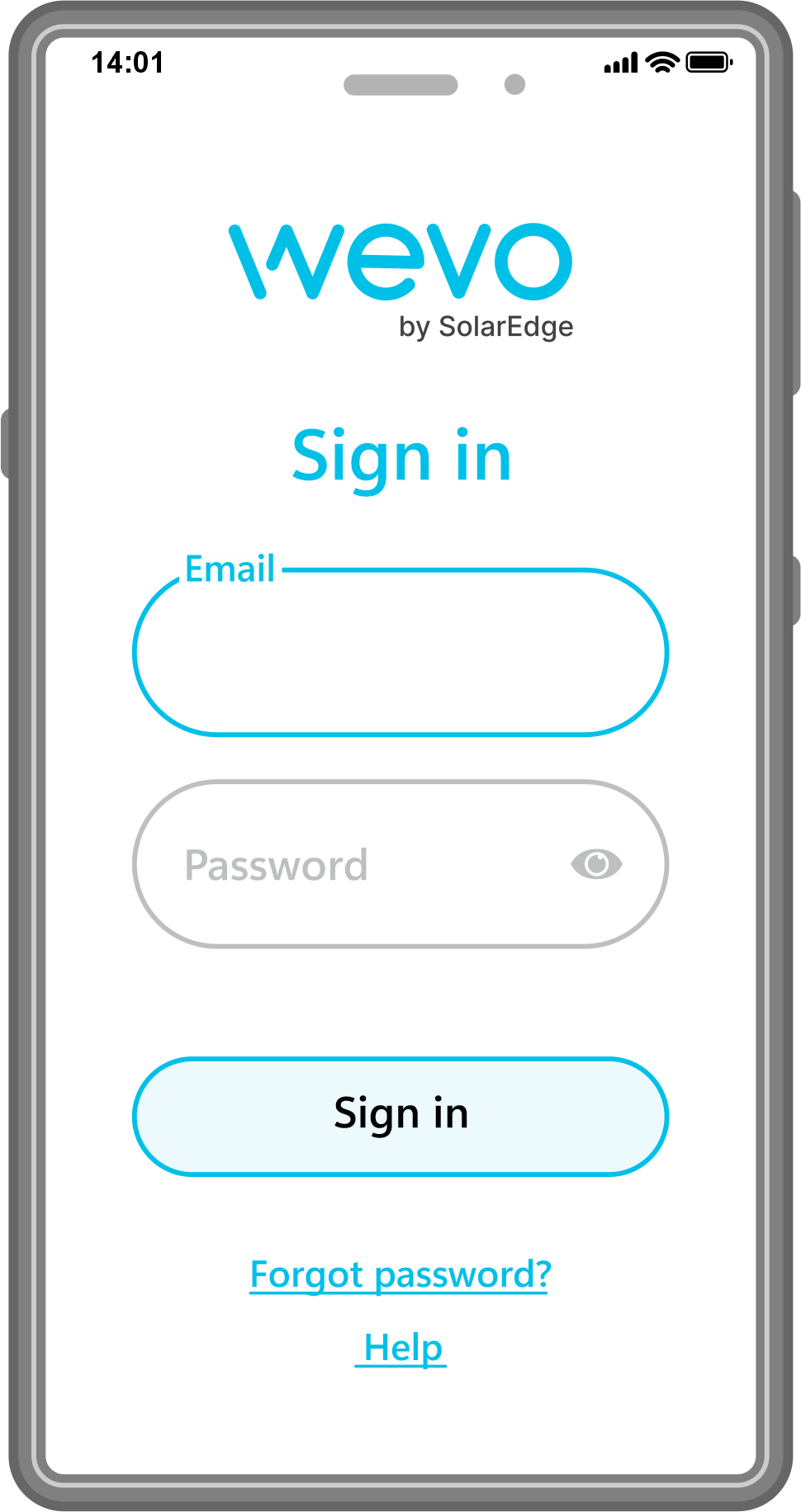
1. Open the EV Charger App and login.
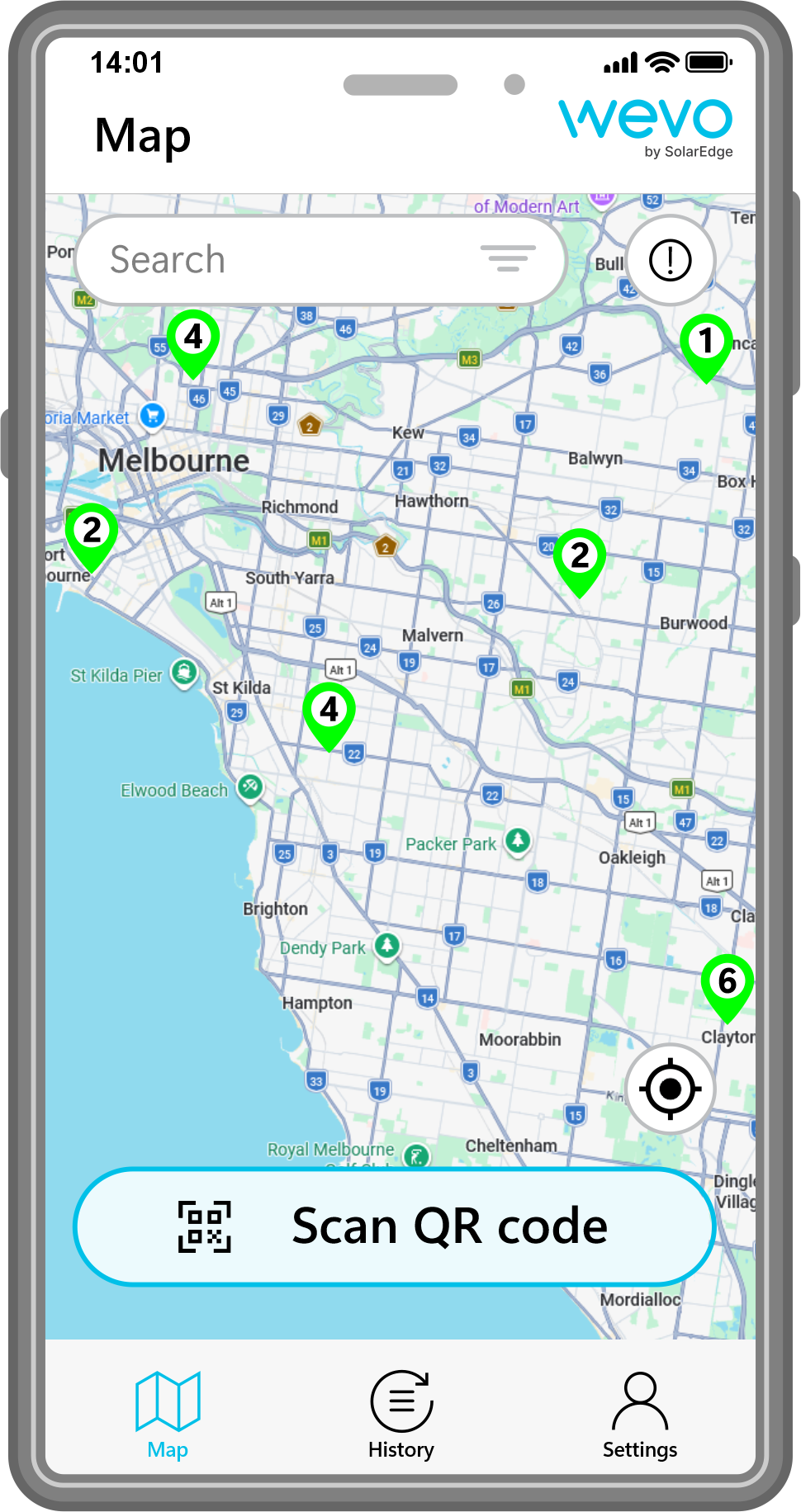
2. If the charger you wish to use has a QR Code, tap “Scan QR Code” on the map tap the icon of your location.
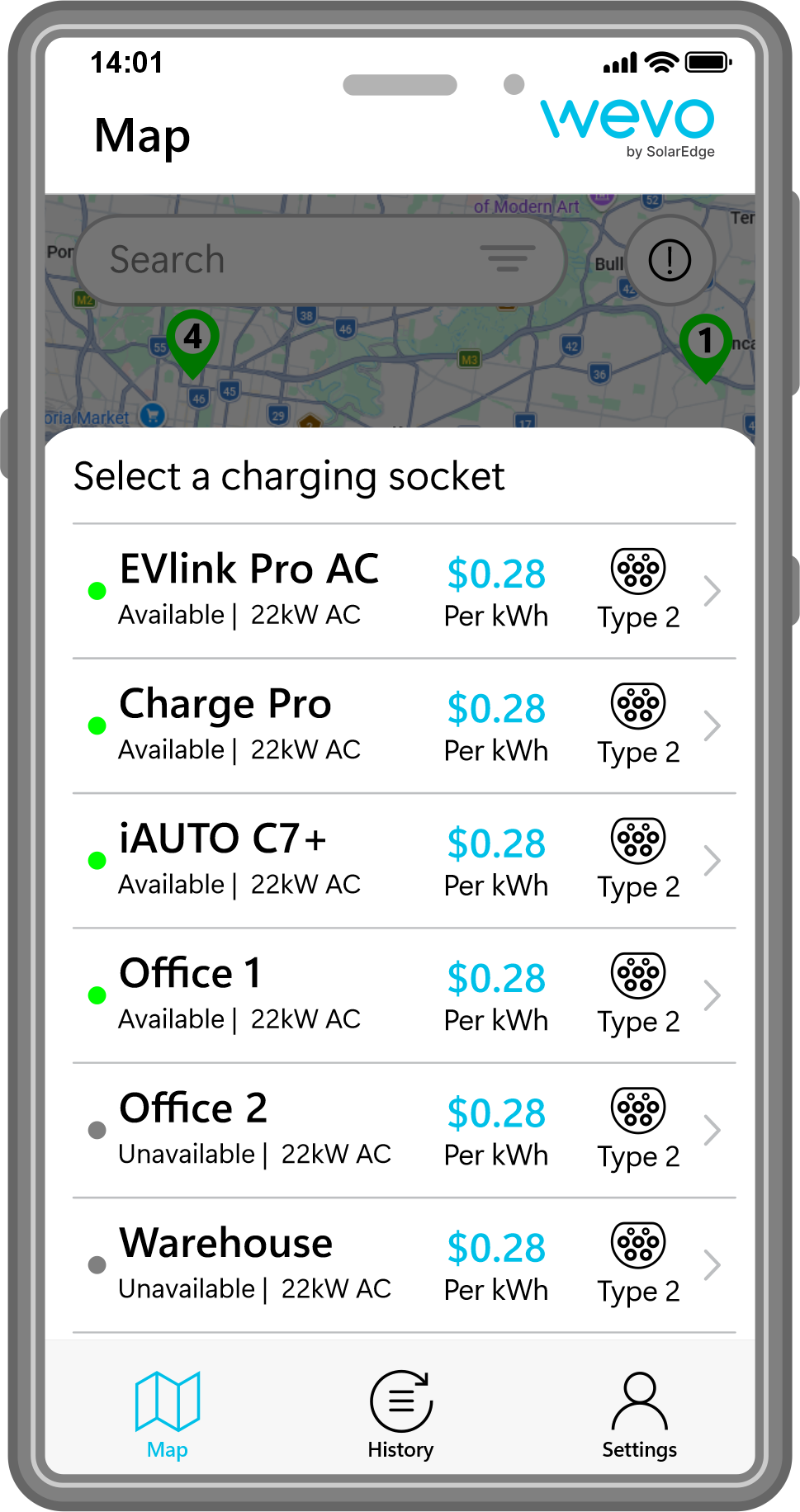
3. Select the available charging socket you wich to use.
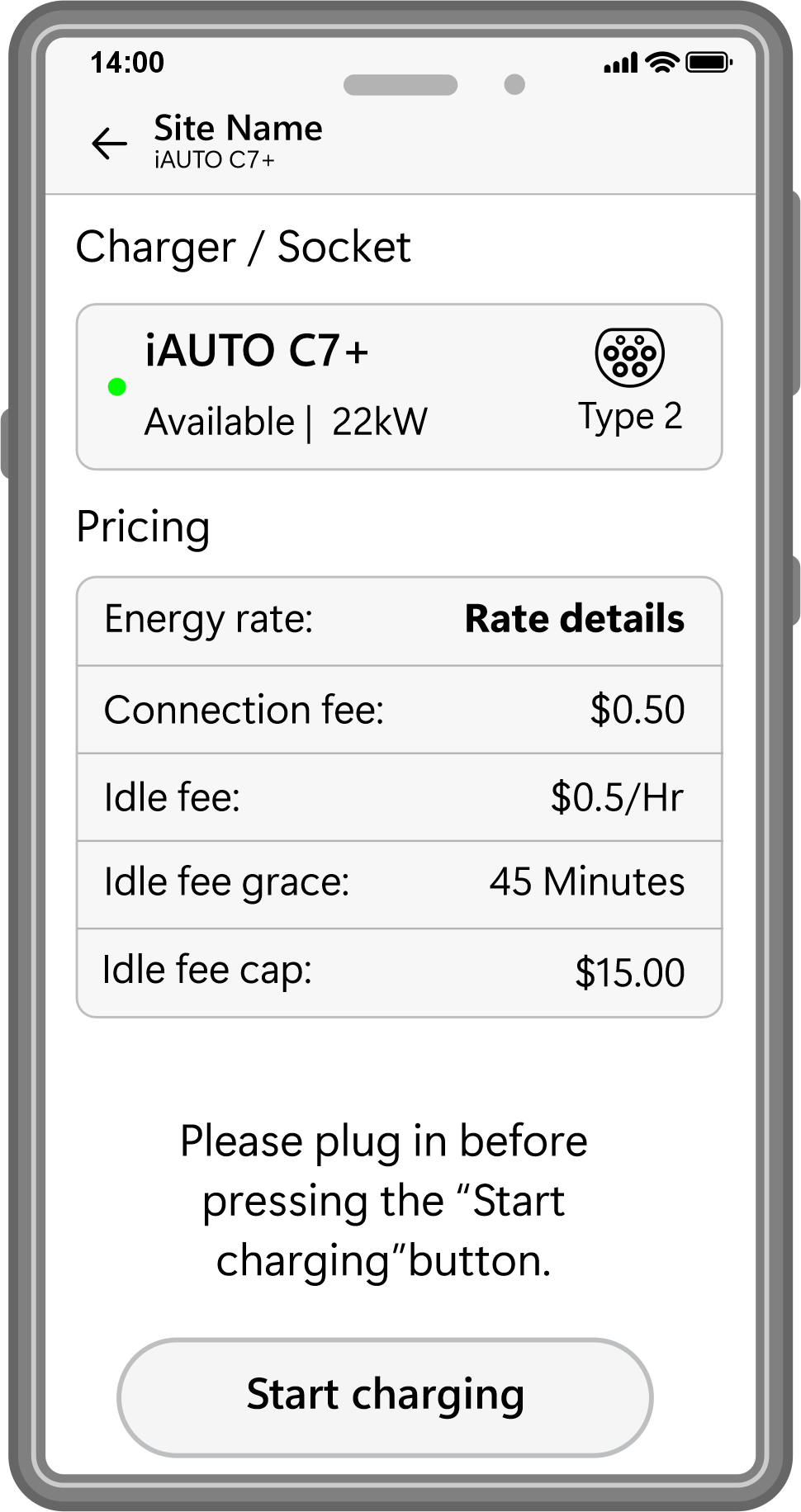
4. Review the charge rates and tap “Start Charging”.
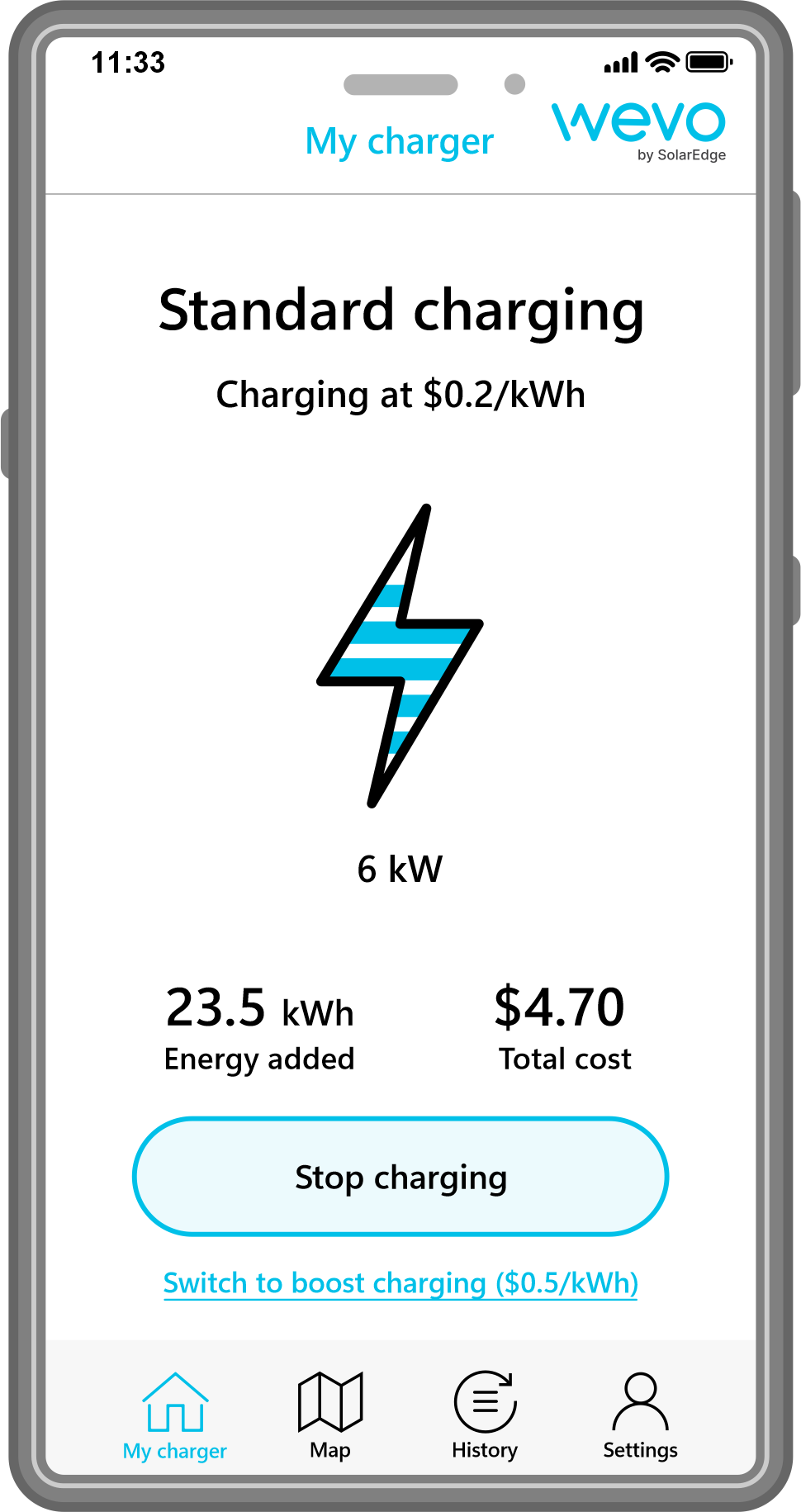
5. When your charging session begins, the app shows your charging progress with the total kWh added and your cost.
Tap “Stop charging” to finish your session.
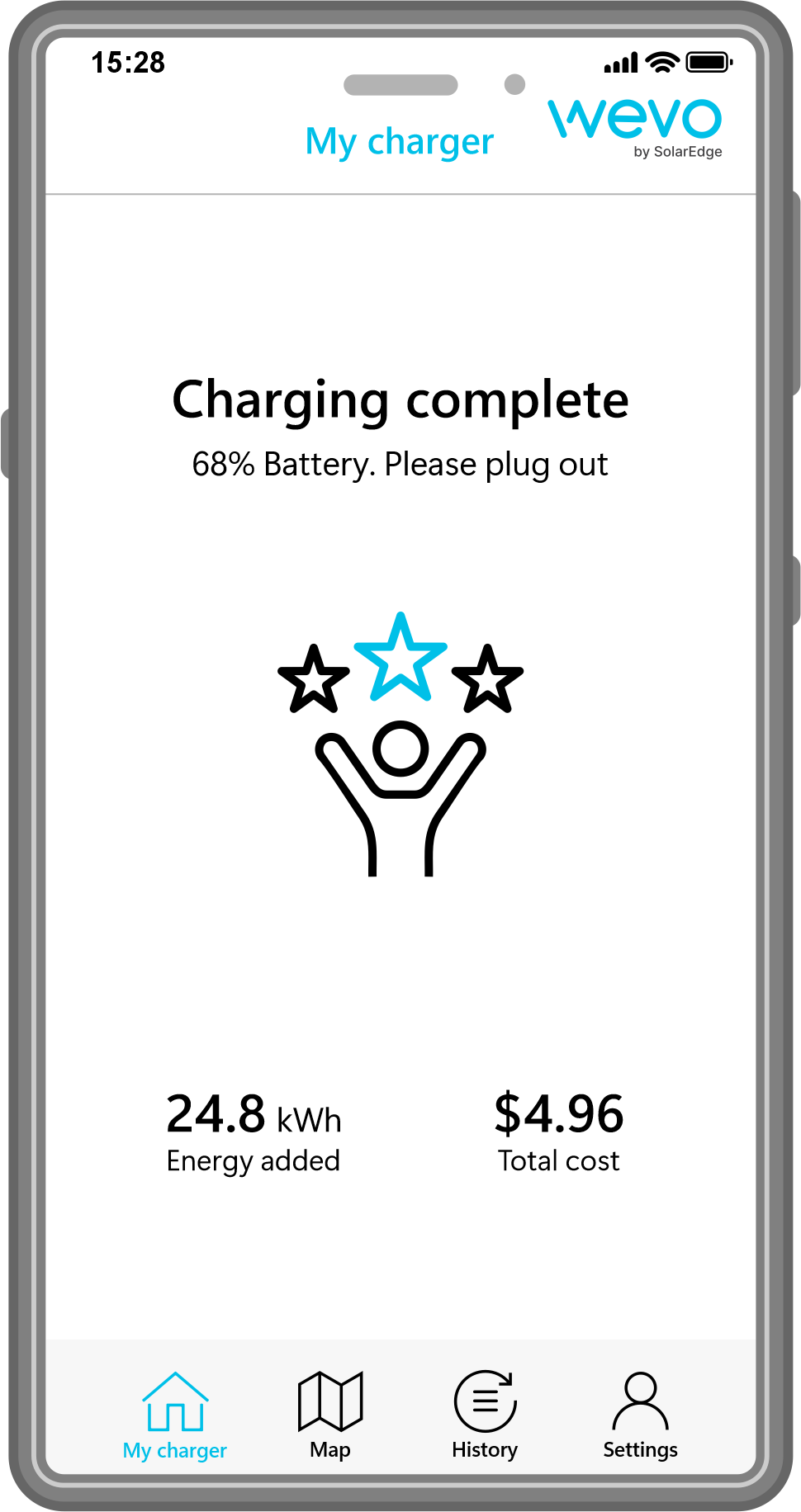
6. Once a charge session is complete, the app will show your vehicle’s charge status, energy added and total cost of this session.